
Workflow · 6 min
The 2×2 terminal layout for working with Claude Code
You start a dev server, and suddenly one pane has two tenants: Claude's narration scrolls the server log away, the server's hot-reload spam buries Claude's question, and you're scrolling up to find who said what. A terminal layout for AI coding has to solve exactly that — two programs that need to be visible at once — and the studio solves it one way: a 2×2 grid you can build from muscle memory in four keystrokes.
A terminal layout for AI coding: two arrangements, not seven
Most sessions need one pane: Claude, full width, nothing else. That's the default, and it stays the default because every pane you add is a slice of attention you've promised to something. The grid only earns its keep when a second program runs continuously — which in practice means a dev server. Then, and only then, you build the 2×2:
Single pane — the default        The 2×2 — dev-server work

┌──────────────────────┐         ┌──────────┬───────────┐
│                      │         │  Claude  │ dev server│
│        Claude        │         ├──────────┼───────────┤
│                      │         │ scratch  │   yazi    │
│                      │         └──────────┴───────────┘
└──────────────────────┘Each quadrant answers a question you ask many times an hour. Claude top-left: what's happening now? Dev server top-right: did the reload succeed, did anything error? Scratch shell bottom-left: a free prompt for one-off commands — git status, a quick curl — without interrupting Claude. Yazi bottom-right: what files exist, what's in them. Anything that doesn't answer an hourly question doesn't get a pane — the six-pane mission-control fantasy looks fantastic in screenshots and gets read approximately never.
The corners aren't arbitrary either. Claude gets top-left because that's where your eyes land first — top-left is the anchor of every reading pattern, and Claude is the pane you converse with. The dev server sits beside it so a reload error appears in your peripheral vision while you read Claude's claim that everything worked — the whole grid exists to make that comparison free. The bottom row is reference material: scratch and files, glanced at, rarely lived in.
Four keystrokes to the grid
The chords come from the studio's Zellij keybindings: Alt+d splits right, Alt+D splits down, Alt+h/j/k/l moves focus. Inside any Zellij session, with Claude running, the grid takes under ten seconds once your hands know the sequence.
- 01Split right — Alt+d. A new pane opens on the right and focus lands in it. This is the dev server's quadrant: start it now (
pnpm devin a project). - 02Split down — Alt+D. Focus is on the server pane, so the split happens in the right column: the bottom-right quadrant appears. That's yazi's future home; leave it as a shell for now.
- 03Hop left — Alt+h. No new pane — focus crosses to the left column, back onto Claude.
- 04Split down again — Alt+D. Bottom-left appears under Claude: your scratch shell. Grid complete. Walk the quadrants with Alt+h/j/k/l until moving feels like glancing.
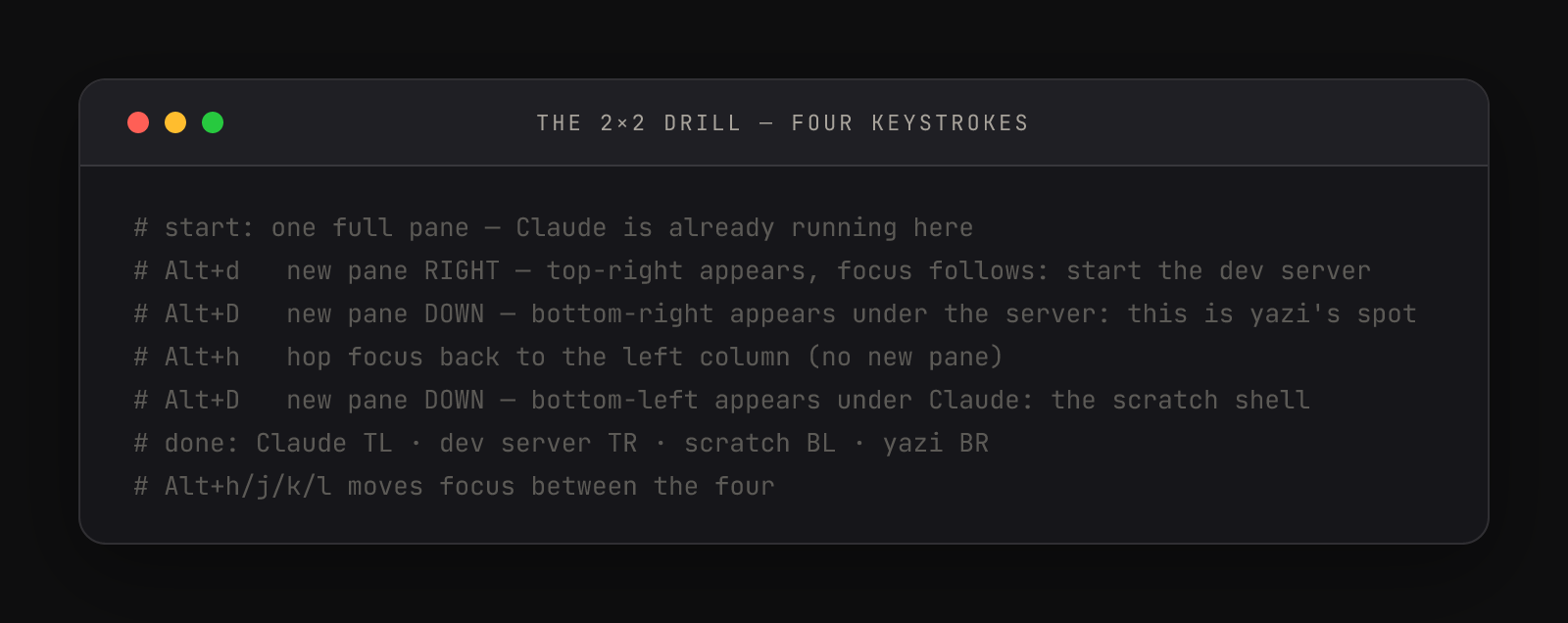
Every split lands focus in the new pane — that's why step 3 exists. Without the Alt+h hop, the second Alt+D would split the right column again and you'd have a lopsided three-stack instead of a grid.
Two repairs for when the grid goes wrong: Alt+w closes the focused pane and the survivors re-tile, and Alt+f toggles the focused pane full-screen — the studio's favorite move when Claude prints a wall of diff and you want to read it big, then snap back to the grid with another Alt+f.
The grid also survives you leaving. It lives in the session, not the window — detach with Alt+q, close the terminal, come back tomorrow, reattach, and all four panes are exactly where you left them, dev server still humming. Build it once per project, not once per sitting.
Alt+d        split right   → top-right    : dev server (pnpm dev)
Alt+D        split down    → bottom-right : yazi
Alt+h        focus left    → (no new pane)
Alt+D        split down    → bottom-left  : scratch shell
Alt+h/j/k/l  move focus    · Alt+f zoom a pane · Alt+w close a pane
The desktop gets the same split
The grid organizes the terminal's interior; the desktop around it has the same two-jobs problem. Claude Code works entirely in text, but you don't — you confirm a file landed by seeing it, a layout by looking at it, an app by clicking around in it. So the studio desktop gives each surface half the screen: the terminal pinned to the right half, and whatever shows you the result pinned to the left — Finder while you're moving files, the browser once a dev server is up. Reading flows left to right, so your eyes rest on the left half by default, and the left half is where results live; the terminal is the machine room.
macOS does this natively — window tiling is built into macOS Tahoe 26 (and Sequoia 15 before it), no third-party window manager required. Click the visual window and press Fn+Control+Left Arrow; click the terminal and press Fn+Control+Right Arrow. That pair of keystrokes is the whole restore ritual, any morning, any screen. Fn+Control+Shift+Right Arrow does it in a single stroke — it tiles the active window right and the next window left — and the same arrangements live under the green button in any window's top-left corner. The full shortcut table covers quarters and top/bottom splits too.
Two settings worth flipping in System Settings → Desktop & Dock, in the window-tiling group: turn off drag-to-edge tiling, because this desktop involves constant dragging — files out of Finder, tabs between windows — and a drag that wanders near a screen edge keeps triggering accidental snaps, while keyboard tiling fires only when you ask; and turn off tiled-window margins, so the two halves sit flush. The payoff of the whole arrangement is what it does to verification: when checking Claude's work means window-hunting, you check less. When the result is always sitting in your left eye, verification costs nothing — so you actually do it, every time.
The trap: one grid is not four agents
When you do want parallelism, the git worktree workflow is the missing piece: each agent gets its own working copy of the repo, and nothing any pane does can break the others.
One last deliberate choice: this is a drill, not a config file. Zellij can load saved layouts from KDL files in its layouts directory — the format is in the Zellij layout docs — but a layout you can rebuild anywhere, in any session, on anyone's machine, is muscle memory. A layout file is a convenience you add after the muscle memory exists.