
Workflow · 5 min
Yazi in a terminal pane: a file manager Claude can share
Claude says it dropped six renders into public/shots/, and you want to see them — are they the right crops, did the dark ones come out? A Finder trip costs your desktop arrangement, your pane focus, and thirty seconds of window shuffle, six times an hour. This yazi file manager tutorial puts the check inside the terminal instead: a keyboard file browser with live previews, steered by the same four keys as everything else in the setup.
A file browser that speaks your compass
Yazi is a terminal file manager written in Rust, and it navigates with h/j/k/l — the same four keys Zellij uses for focus (Alt+h/j/k/l) and vim uses for everything. One compass, three tools: left/down/up/right becomes your hands' native coordinate system, and yazi is the cheapest place to drill it, because browsing files has no failure mode.
Three columns, one rule: parent directory on the left, current directory in the middle, and a live preview of whatever's selected on the right. Select a .tsx file, see the code. Select a PNG, see the image — in the pane, in the terminal, no Preview.app, no QuickLook. That works because Ghostty speaks the same terminal graphics protocol yazi emits, and the icons render because the Ghostty config sets font-family = JetBrainsMono Nerd Font.
Its natural home is the bottom-right quadrant of the 2×2 terminal layout — the corner reserved for the question that interrupts you most: what files exist, and what's in them?
The yazi file manager tutorial: five steps
- 01Install it:
brew install yazi. For full previews the yazi docs recommend optional helpers — the ones that matter most arepoppler(PDF previews),ffmpeg(video thumbnails), andresvg(SVG previews). Add them to the same brew command or skip them for now; yazi previews images and code without any of them. - 02Verify the install:
yazi --versionshould answer with a version line like the frame below. - 03Open it in a pane: type
yazi. Three columns appear. Steer withh/j/k/l, then press.to toggle hidden files — a first look at the dotfiles behind your setup. - 04Browse to a project folder with images in it:
j/kto move down and up the list,lto enter a folder,hto back out. Select a PNG and watch the preview column become the image itself. - 05Quit two ways:
qquits — and after the wrapper below, also moves your shell to the directory you were browsing.Qquits without moving it.
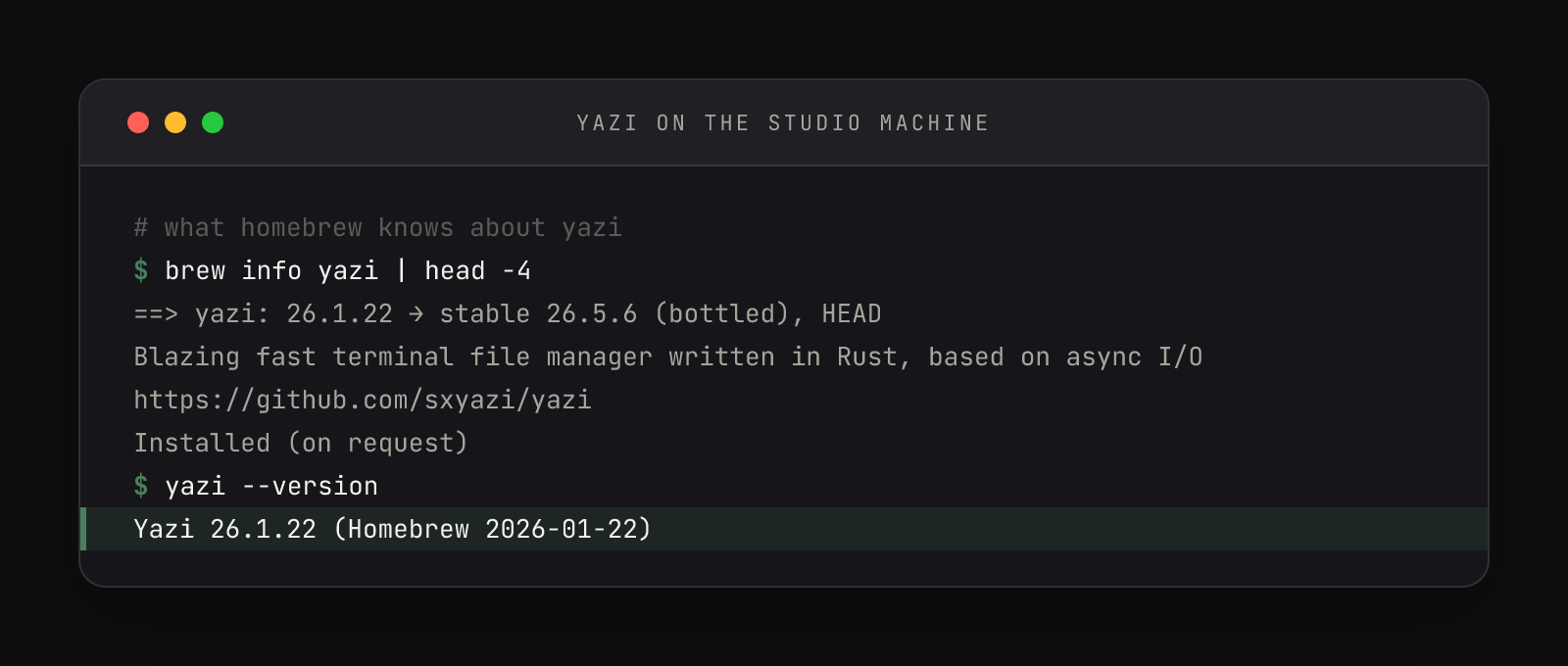
Two honest notes from that frame: the studio runs Yazi 26.1.22 while brew's first line shows the formula has already moved to a newer stable — yazi ships fast, and the eight keys below have been stable across that churn. And Installed (on request) is brew confirming this was a deliberate install, not a dependency stowaway.
h / l    leave / enter directory      j / k    move down / up
Enter    open the selected file       q        quit (and cd, with the wrapper)
.        toggle hidden files          /        find in the current directory
The y trick: quit where you browsed
Plain yazi has a frustration baked in: you browse four levels deep into a project, quit, and your shell is still sitting where you started. The fix is a tiny wrapper function — this is the studio's own, verbatim from its ~/.zshrc, and it's the official pattern from the yazi quick start:
# Yazi wrapper — cd to last dir on exit (use in a split pane: Alt+d then type y)
function y() {
    local tmp="$(mktemp -t "yazi-cwd.XXXXXX")" cwd
    yazi "$@" --cwd-file="$tmp"
    if cwd="$(command cat -- "$tmp")" && [ -n "$cwd" ] && [ "$cwd" != "$PWD" ]; then
        builtin cd -- "$cwd"
    fi
    rm -f -- "$tmp"
}Read it as a relay race: make a temp file, hand yazi the baton with --cwd-file (yazi writes its final directory there on exit), read the baton back, and cd if it points somewhere new. Paste it into ~/.zshrc, run source ~/.zshrc, and every browse becomes a possible destination — deep cd paths stop being something you type.
Why a pane beats Finder here
Finder is a destination; the pane is peripheral vision. Verification you do thirty times a session has to be nearly free or you'll stop doing it — and a glance at a pane is free, while a window switch never is. With yazi in the corner, did Claude actually create the component is a glance, and what's in it is two keystrokes, hands never leaving the keyboard or the session. Finder still exists for drag-and-drop into other apps; what it no longer owns is the every-six-minutes did-that-file-land check.
It also closes the compass loop. Alt+j drops your focus into the yazi pane; j moves down a file list; quit and you're standing in that directory ready to type. Same keys, nested scales. The full keymap beyond these eight — selection, copy and paste, search with fd and ripgrep — is in the yazi quick start, and the complete optional-dependency list, with what each helper unlocks, is on the installation page.