
Terminal · 6 min
What a terminal actually is (a plain-English guide for Mac)
You've seen the move: someone opens a black window, types eleven characters, and a website deploys. Meanwhile you're forty minutes deep in a settings panel hunting for an export button. That black window isn't a hacker prop — it's the oldest, plainest interface your Mac has, and it's where Claude Code lives. Four minutes from now, you'll have typed your first four commands into it.
A second face for the same computer
Your Mac has two interfaces to the exact same machine. Finder shows you folders as icons you drag around. The terminal shows you the same folders as text you ask about. Nothing is hidden in either direction — ~/Desktop in the terminal is the Desktop you've been dragging files onto for years.
Two words you need, because everything written about terminals uses them:
- The terminal is the window — the speaker and the microphone. Apps like Terminal.app (built into macOS) or Ghostty are terminals.
- The shell is the program on the other end that reads what you type and answers. On every modern Mac that's
zsh, a program that lives at/bin/zsh.
You type a sentence, the shell does the thing, the shell prints the result. That's the entire interaction model.
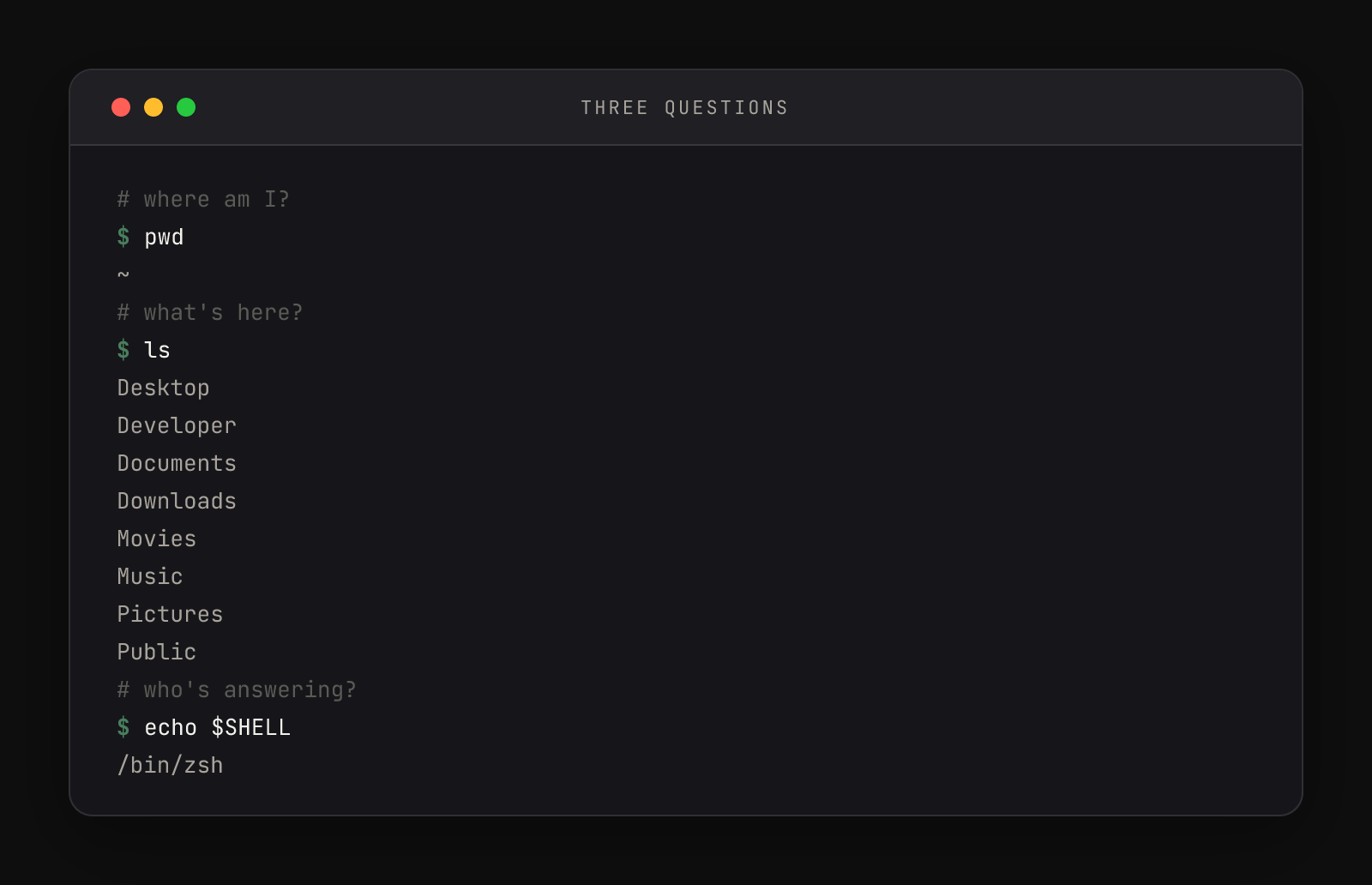
Notice the shape in that frame: every line starting with $ is you, the dim # lines are notes the shell ignores, and everything else is the shell answering. Reading terminal sessions is reading a chat transcript.
Your first four commands
- 01Open the terminal: press Cmd+Space, type
Terminal, hit Enter. A plain window appears with a blinking cursor — that cursor line is the prompt, the shell waiting for you. - 02Ask where you are: type
pwdand press Enter — "print working directory". It answers with your home folder, the one Finder shows with the house icon. Every terminal window opens there. - 03Ask what's here: type
ls— "list". Those names are the same folders sitting in Finder right now: Desktop, Documents, Downloads. - 04Ask who's answering: type
echo $SHELL. The reply is/bin/zsh— the shell's home address on your disk. It's a file like any other.
If anything came back with command not found, nothing broke. The shell is literal-minded: a typo like pdw gets you an immediate complaint naming the exact word it didn't recognize, then a fresh prompt to try again. Errors here are conversational, not catastrophic.
Now go one step further and make something. Type these four lines, pressing Enter after each:
$ mkdir studio-demo
$ cd studio-demo
$ touch index.html style.css notes.txt
$ ls
index.html
notes.txt
style.cssThree of those commands answered with silence — in the terminal, silence means success. The shell convention is: succeed quietly, complain loudly. Only ls had something to report: the three files you created. Switch to Finder and look inside the new studio-demo folder. They're there. Same computer, two faces.
Why text, in 2026
It feels backwards that the newest way of building — describing what you want to an AI — runs through the oldest interface on the machine. It's not an accident.
Text is precise: mkdir studio-demo means exactly one thing, every time, on every Mac. Text is repeatable: any sequence of commands can be saved, shared, and replayed — which is what a script is, and it's how one command can open a whole project with an AI session already running. And text is composable: small commands chain into bigger ones, like clips into a timeline.
That's also why Claude Code lives here. Claude works by reading and writing text — so an interface where every action is text means Claude can drive your entire computer through the same doorway you just walked through. When Claude runs ls in a session, it's typing into the very shell you just met. Try asking it directly:
$ claude --version
2.1.175 (Claude Code)Your safety net
The honest worry: "what if I type something destructive?" Fair — the terminal does what you say, including the bad ideas. The rule that fixes it: you never have to run a command you can't read. Make Claude your translator.
Before I run this command, explain it to me:

<paste the command here>

Tell me: 1) what each word and flag does, 2) what will change on my
machine, 3) whether it's reversible, and how to undo it if so.
Don't run anything — just explain.The pocket reference — everything from this article, plus the one command that bridges back to Finder:
pwd          # print working directory — where am I?
ls           # list — what's here?
cd <folder>  # change directory — go there ("cd .." goes up one)
mkdir <name> # make a new folder
touch <name> # make a new empty file
open .       # open THIS folder in Finder — the bridge between faces
From here the path is mechanical: install a terminal worth configuring, add a multiplexer so sessions survive, and put Claude Code inside it. Apple's own Terminal User Guide covers the macOS-specific preferences this guide skips.